MarkdownEditor
A Markdown field — a formatting toolbar, a write pane and a rendered preview.
Installation
MarkdownEditor ships with the library — install it once, then import:
import { MarkdownEditor } from "@delacour/react-native-ui/markdown-editor";Or copy the source into your project, to own and edit it:
bunx delacour@latest add markdown-editorUsage
import { Field } from "@/components/ui/field";
import { MarkdownEditor } from "@/components/ui/markdown-editor";
import { useState } from "react";
import { View } from "react-native";

export default function Example() {
  const [notes, setNotes] = useState("## Release notes\n\n- Faster open");

  return (
    <View className="flex-1 justify-center p-4">
      <Field>
        <Field.Label>Notes</Field.Label>
        <MarkdownEditor value={notes} onValueChange={setNotes} placeholder="Write something" />
      </Field>
    </View>
  );
}
A bare <MarkdownEditor /> draws a toolbar, the write pane and the preview. Only one pane shows at
a time; the toolbar's Write / Preview switch flips between them.
Formatting
With a selection, an inline action wraps it and keeps it selected; with a caret, it inserts the markers and puts the caret between them. Pressing the same action again removes it. Inline markers never span a line break — a selection across lines is wrapped line by line.
Heading, quote and the two lists apply to every line the selection touches. The heading button steps through levels one, two and three, then back to body text.
Return on a list or quote line starts the next item — the same bullet, the next number, another
> . Return on an empty item ends the list. Turn it off with continueLists={false}.
Choosing the actions
actions picks the buttons and their order.
<MarkdownEditor rows={4}>
  <MarkdownEditor.Toolbar actions={["bulletList", "bold", "italic", "link"]} />
  <MarkdownEditor.Input placeholder="Leave a comment" />
  <MarkdownEditor.Preview emptyText="Nothing to preview yet" />
</MarkdownEditor>| Action | Writes |
|---|---|
heading | # , ## , ### |
bold | **text** |
italic | _text_ |
strikethrough | ~~text~~ |
link | [text](url) — with no url, url is inserted and selected |
code | `text` |
codeBlock | a ``` fence |
quote | > |
bulletList | - |
orderedList | 1. , 2. , … |
Toolbar looks
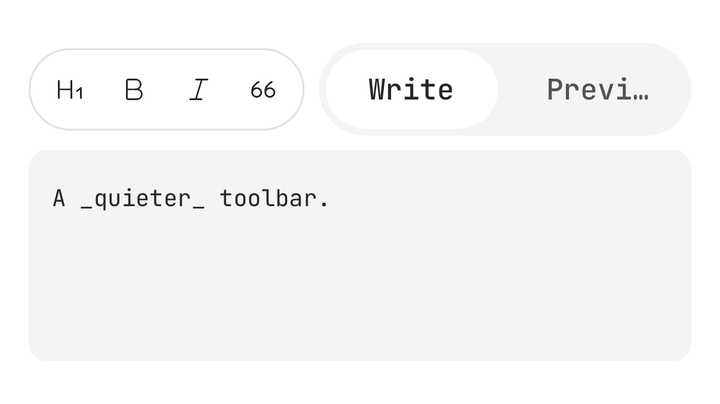
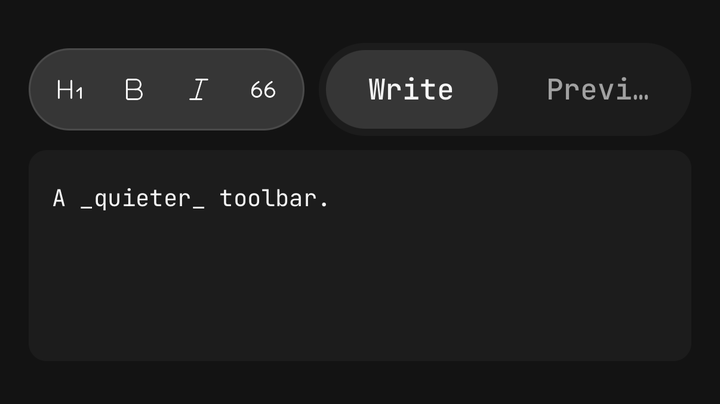
bar sits on the field's top edge as its lid. pill floats an icon-only capsule above it. variant styles the field and the preview together — outlined on primary, filled on secondary, set-in on etched — the same three boxes as Input.
<MarkdownEditor variant="secondary">
  <MarkdownEditor.Toolbar variant="pill" actions={["heading", "bold", "italic", "quote"]} />
  <MarkdownEditor.Input />
  <MarkdownEditor.Preview />
</MarkdownEditor>
Controlled mode
mode and onModeChange put the pane in your hands — for a preview button elsewhere on the screen.
const [mode, setMode] = useState<MarkdownMode>("write");

<MarkdownEditor mode={mode} onModeChange={setMode} />;
States
Invalid and disabled come from an enclosing Field. Disabled blocks the text, the toolbar and the
mode switch. isReadOnly keeps the text selectable and the switch working, and turns formatting off.
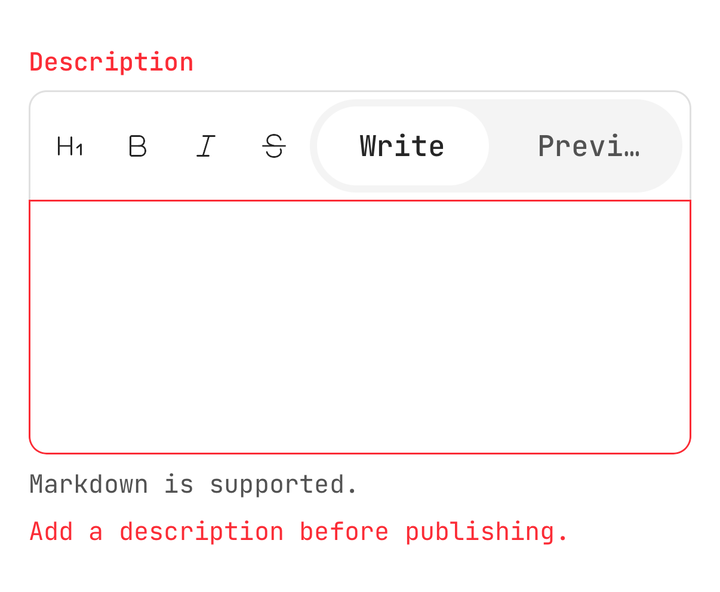
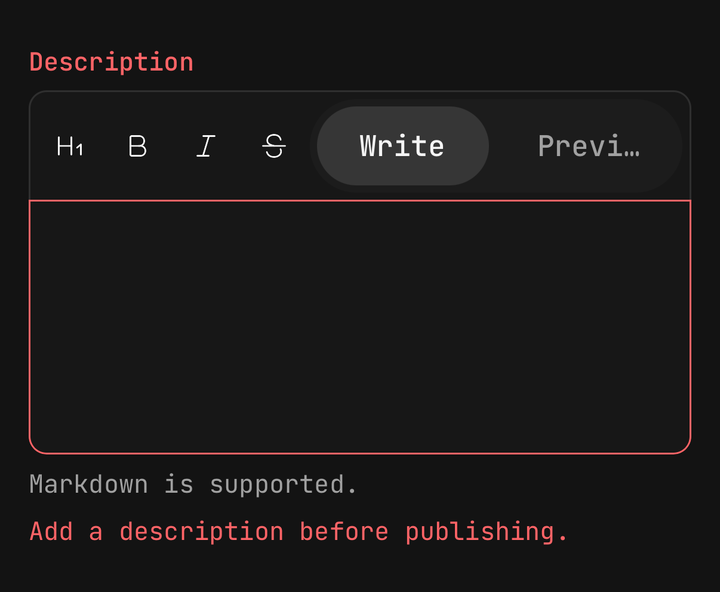
<Field isInvalid={description.trim() === ""}>
  <Field.Label>Description</Field.Label>
  <MarkdownEditor value={description} onValueChange={setDescription} />
  <Field.Error>Add a description before publishing.</Field.Error>
</Field>
Supported Markdown
The preview draws the subset the toolbar writes, on the library's own Text presets.
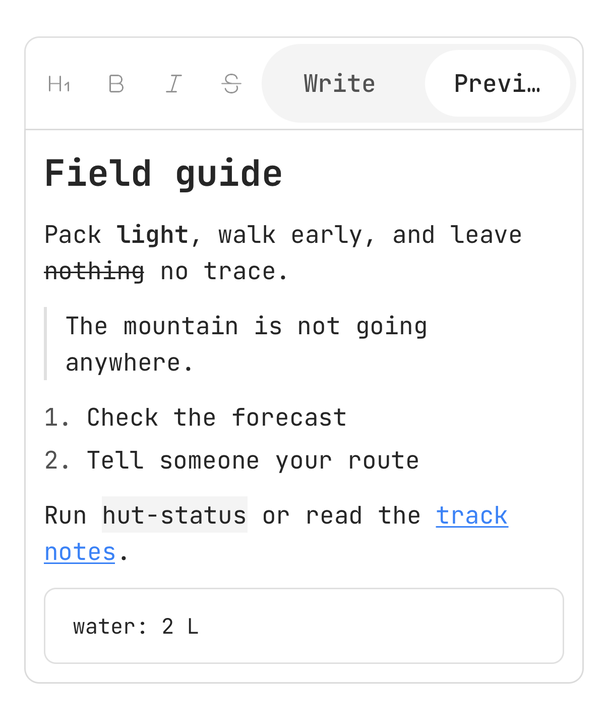
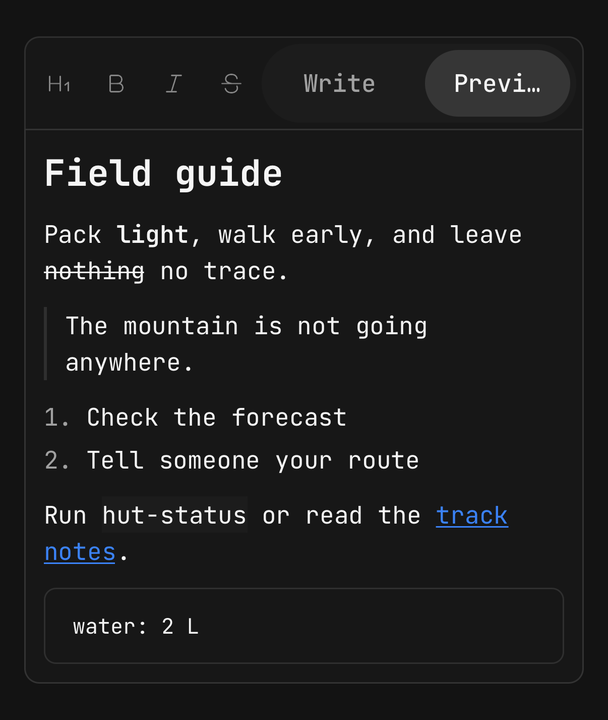
| Markdown | Renders as |
|---|---|
#, ##, ### | Text.Title, Text.Header, Text.Header at lg — announced as headings |
**bold**, _italic_ / *italic*, ~~struck~~ | Text.Strong, Text.Emphasis, a line-through |
`code` and fenced blocks | Text.Code; a block sits on a bordered panel |
[label](url) | Text.Link |
> quote | a ruled, indented block |
- item, 1. item | rows with a bullet or a number |
Not supported: tables, images, task lists, HTML, footnotes, syntax highlighting and nested lists
beyond keeping their indent. #### and deeper is a paragraph. An unclosed marker stays literal, and
snake_case_name is not italic.
Custom controls
useMarkdownEditor() reaches the editor from a control of your own inside it, and a ref reaches
apply, focus and getActive from outside.
function ChecklistButton() {
  const { apply, canFormat } = useMarkdownEditor();
  return (
    <Button isDisabled={!canFormat} onPress={() => apply({ type: "bulletList" })}>
      <Button.Label>List</Button.Label>
    </Button>
  );
}
Without the component
The formatting and the parser are plain functions, identical on iOS and Android.
import { applyMarkdownCommand, parseMarkdown } from "@/components/ui/markdown-editor";

applyMarkdownCommand("say hi", { start: 4, end: 6 }, { type: "bold" });
// { text: "say **hi**", selection: { start: 6, end: 8 } }

parseMarkdown("# Hello");
// [{ type: "heading", level: 1, children: [{ type: "text", value: "Hello" }] }]
Security
A link in the preview opens only when its scheme is http, https, mailto or tel. Anything
else — javascript:, data:, file: — is drawn as its label, with nothing to press. A custom
onLinkPress is only ever handed a url that passed that check.
Accessibility
- The toolbar has the
toolbarrole; each action is a toggle with a label ("Bold", "Numbered list") and a checked state that follows the caret. - Each press is announced — "Bold applied", "Bold removed".
- The mode switch is a tab bar: "Preview, tab 2 of 2".
- In the preview, headings carry the
headerrole, links thelinkrole, and list items start with "bullet" or their number. - Toolbar presses never take focus from the field, so the keyboard stays up.
API Reference
MarkdownEditor
Prop
Type
MarkdownEditor.Toolbar
Prop
Type
MarkdownEditor.Input
Textarea's props, without the ones the editor owns — the value, selection, height and states.
MarkdownEditor.Preview
Prop
Type