Countdown
Time left until a fixed moment — a sale ending, a launch, a booking hold — read from the wall clock on every tick.
Installation
Countdown ships with the library — install it once, then import:
import { Countdown } from "@delacour/react-native-ui/countdown";Or copy the source into your project, to own and edit it:
bunx delacour@latest add countdownUsage
import { Countdown } from "@/components/ui/countdown";
import { useState } from "react";
import { View } from "react-native";

const TWO_DAYS = 2 * 24 * 60 * 60 * 1000;

export default function Example() {
  const [endsAt] = useState(() => Date.now() + TWO_DAYS);

  return (
    <View className="flex-1 items-center justify-center p-4">
      <Countdown to={endsAt} />
    </View>
  );
}
Compute to once — in state, or from your data — never inline in render, or every render moves the target.
Clock accuracy
It reads the wall clock on every tick rather than counting a number down, and re-reads the moment the app returns to the foreground — so it is right after the app was backgrounded, the JavaScript thread stalled or the device slept. Each tick is aimed at the next whole-second boundary, so it never drifts.
Variants
segmented draws each unit in its own box with a caption beneath and slides a changed digit in from above.
inline is one run of text for a row or a banner.
<Countdown to={endsAt} />
<Countdown to={endsAt} variant="inline" size="sm" />
Inline reads 2d 14:03:22, 14:03:22 or 3:22 — days lead with a suffix, and every unit after the first is
padded to two digits.
Sizes
size steps the digits up the type scale and the box padding with them.
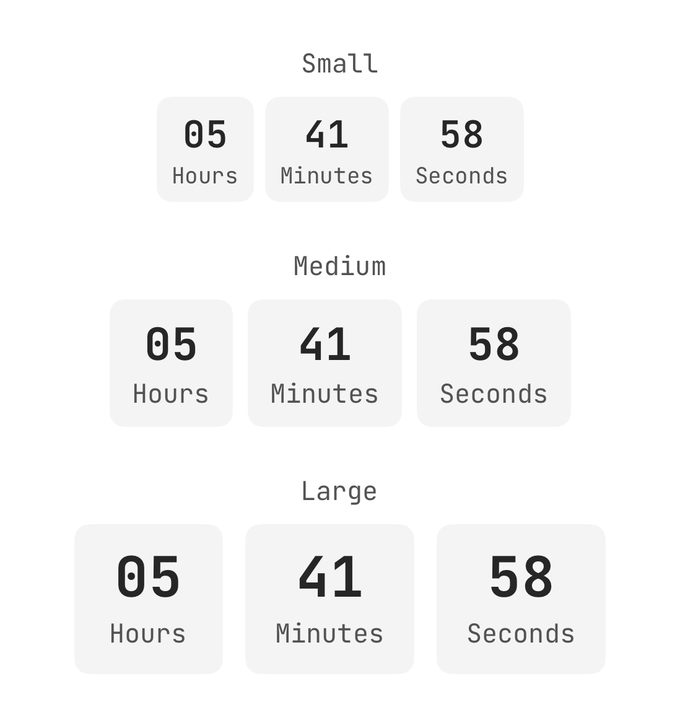
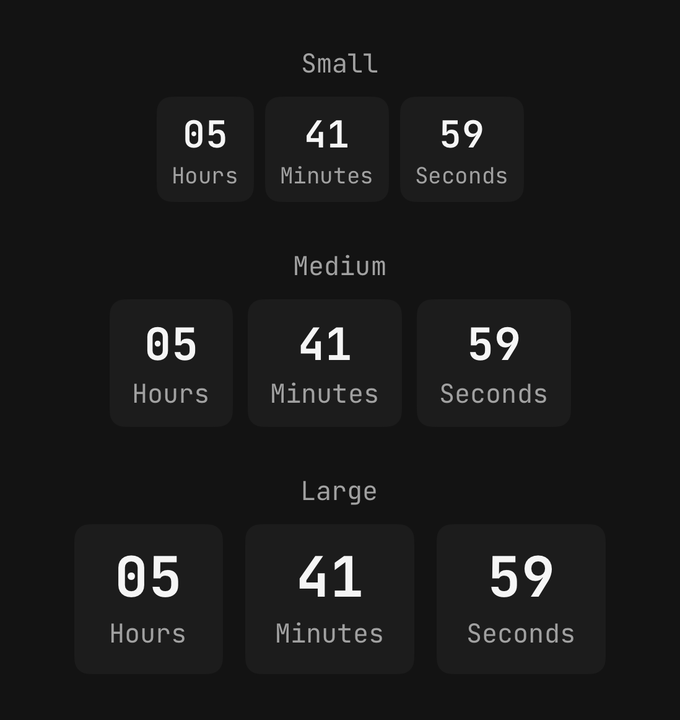
<Countdown size="sm" to={endsAt} />
<Countdown size="md" to={endsAt} />
<Countdown size="lg" to={endsAt} />
Units
Pick which units to show. The largest absorbs everything above it, so hours and minutes read 48:00 for two
days rather than dropping the days.
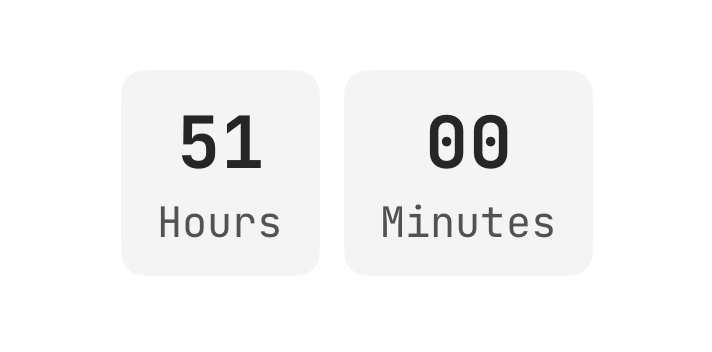
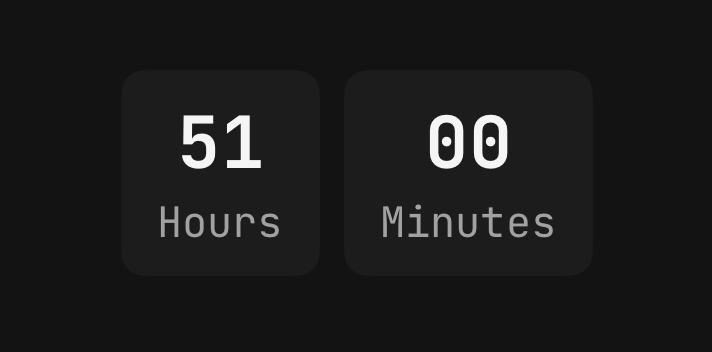
<Countdown to={endsAt} units={["hours", "minutes", "seconds"]} />
<Countdown to={endsAt} units={["hours", "minutes"]} />
The smallest selected unit rounds up, so a countdown never reads zero before time is actually up.
Trim
With trim, on by default, leading units that read zero are dropped — never below the smallest two
selected, so the last minute still reads 0:59. Turn it off to keep every unit in place.
<Countdown to={endsAt} trim={false} />Urgency
urgentBelow takes seconds; at or below it the digits turn destructive.
<Countdown to={holdEndsAt} urgentBelow={60} />Completion
Seconds round up: the final second reads 0:01, and 0:00 appears only when time is up — which is when
onComplete fires, once per to. Give it a new to and it counts again.
<Countdown onComplete={() => setIsExpired(true)} to={endsAt} />onTick is called with the seconds left whenever they change.
Labels
labels replaces the captions under the boxes, and names the units a screen reader hears.
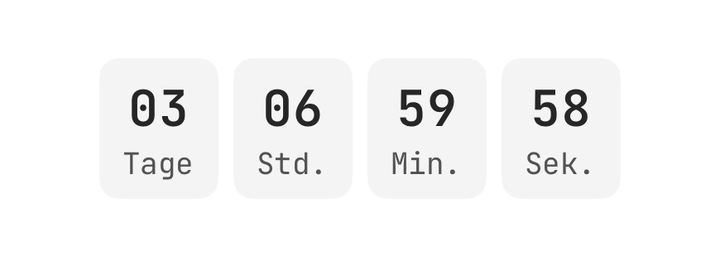
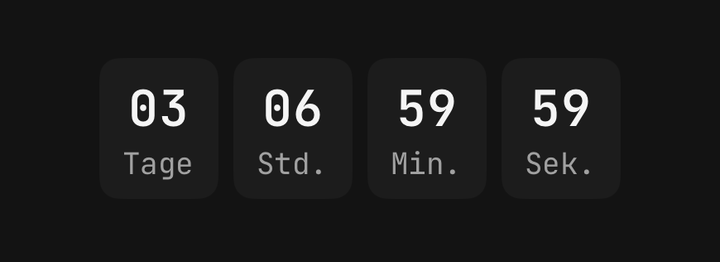
<Countdown labels={{ days: "Tage", hours: "Std.", minutes: "Min.", seconds: "Sek." }} to={endsAt} />Accessibility
The countdown is one element with the timer role, and the digits are hidden from assistive technology. Its
label is coarse — "2 days, 14 hours, 3 minutes left" — and names seconds only in the final minute, so a
screen reader is not told every second. Digit motion is skipped on the first render, under the system's
reduce-motion setting, and with isMotionCalm on the provider; the count keeps ticking either way.
API Reference
Countdown
Extends ViewProps.
Prop
Type